 Gleeo Time Tracker
Set up the working time module
Step by step, no prior knowledge needed. Keep to the order – each step builds on the one before.
Requirements
The working time module is part of the web application and requires a Sync&Team subscription. Once it is enabled for your subscription, the menu shows the item Working hours. The view is built for computers and tablets; it does not appear on small screens.
You create a new account for your business with Try free for 30 days on this website. In Switzerland the trial includes the working time module, in other countries on request; before the 30 days are over, you order, with or without the module, on annual invoice in the web app under User.
Anyone who records working time must be a member of the subscription (Sync&Team guide, step 5). Only administrators of the subscription can set things up: they create time models, holidays and leave types and assign each person a work profile. Members then record their own working time; administrators see and edit everyone's.
Working time is recorded in the web application. The app does not record working time, but it does record project time, and the web application suggests working time from it (step 5).
If there is no time model yet, the Working hours view says so and takes you to the settings with one click.
 Enlarge image
Create a time model
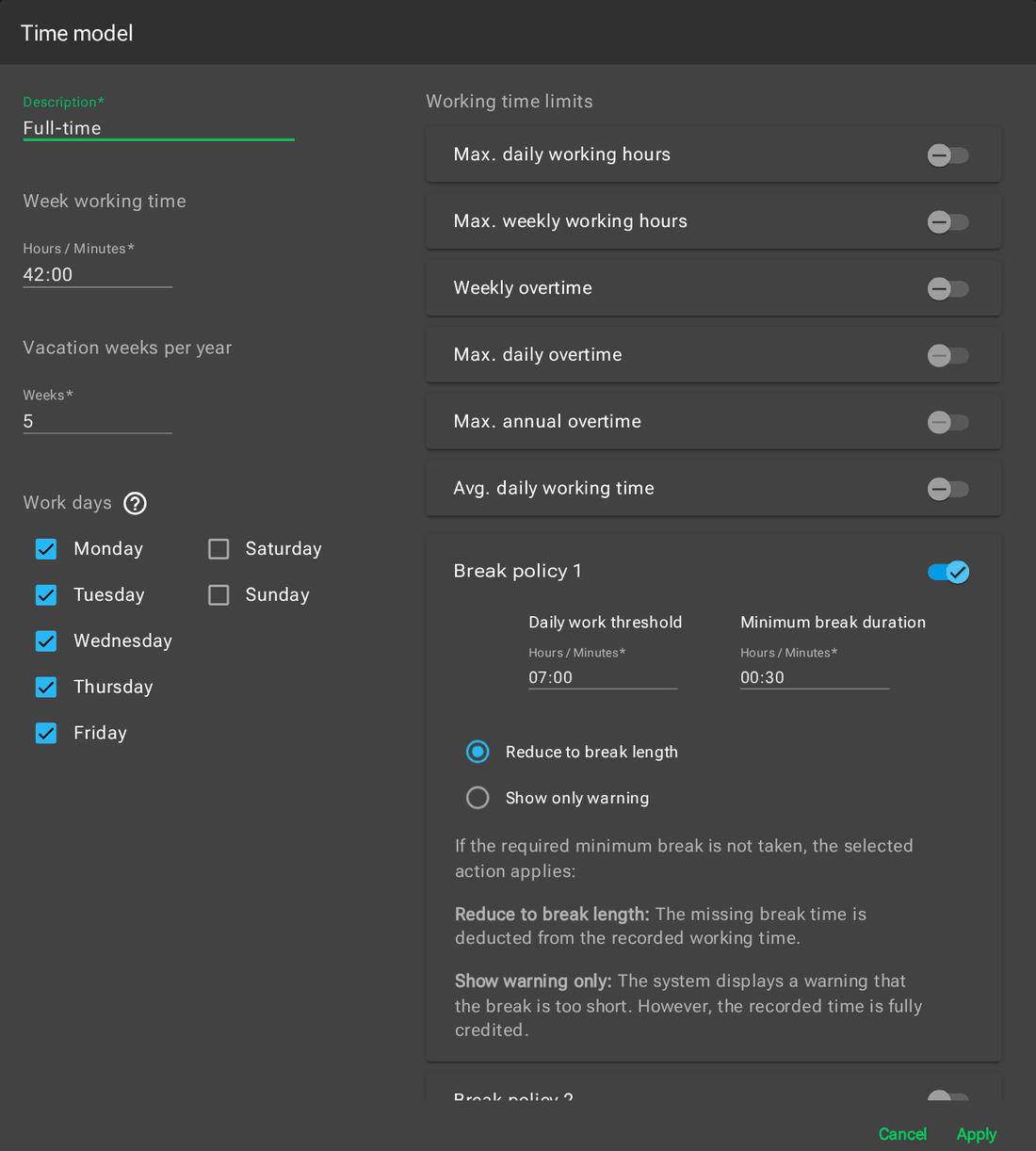
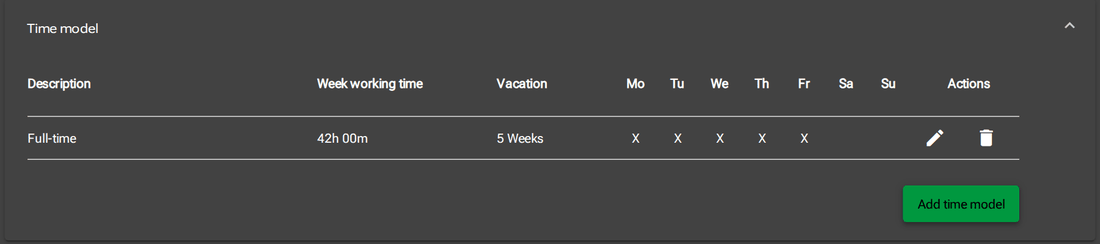
The time model describes how much and on which days people work. You find it under Extras, Settings, Working time model, Time model; Add time model opens the dialog. You can have several models, for example one for employees and one for apprentices.
Description is the name under which the model appears in the work profile. Week working time applies to a full workload, Vacation weeks per year gives the vacation allowance. Under Work days you tick the days the weekly time is spread over. If a holiday falls on a work day, that day's target is reduced accordingly.
On the right are the Working time limits, each with its own switch: daily and weekly maximum, overtime, breaks, rest periods and the earliest and latest time of work. For some you choose whether time beyond the limit is not credited (Cut excess, for breaks Reduce to break length) or only a warning is shown (Show only warning). The others only warn. The recorded entries themselves never change; what is cut appears in the Total Cut column.
 Enlarge image
 Enlarge image
Holidays and paid leave
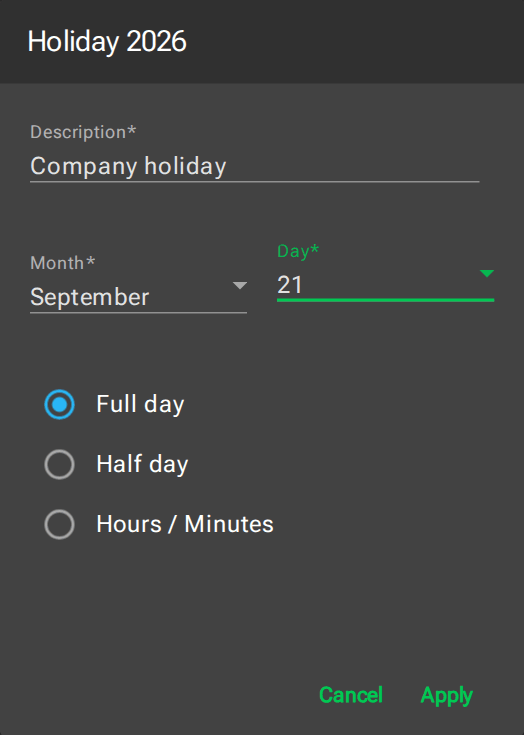
Under Holidays you enter the days off in a year, as a full or half day or in hours and minutes. Copy to next year carries the list over to the following year; adjust holidays whose date changes afterwards.
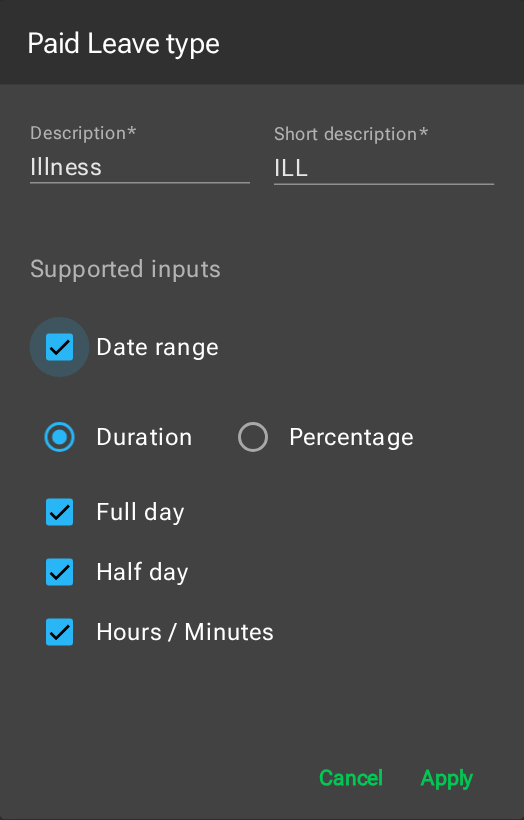
Under Paid Leave types you define which absences exist, for example illness or a doctor's appointment. The three-character Short description appears in the table and on the time statement. Under supported inputs you choose how an absence is entered: as a full or half day, in hours and minutes, or as a percentage of the daily working time. Date range allows several days to be entered at once.
 Enlarge image
 Enlarge image
Under Common settings you set the day the working week starts. With No double credit switched on, paid leave on a day with working time only counts until the daily target is reached; together they produce no flex time.
Create a work profile for each person
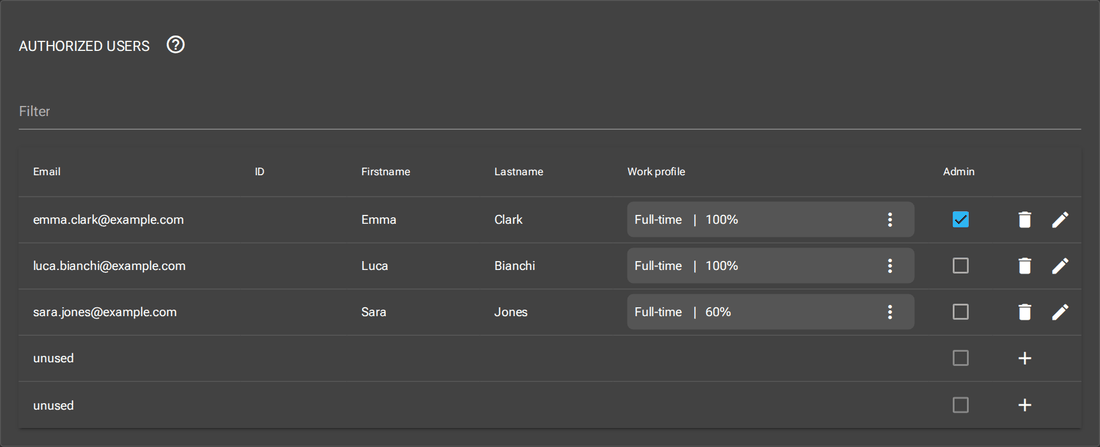
The work profile links a person to a time model. Under Extras, User every row has the Work profile column; Add work profile opens the dialog.
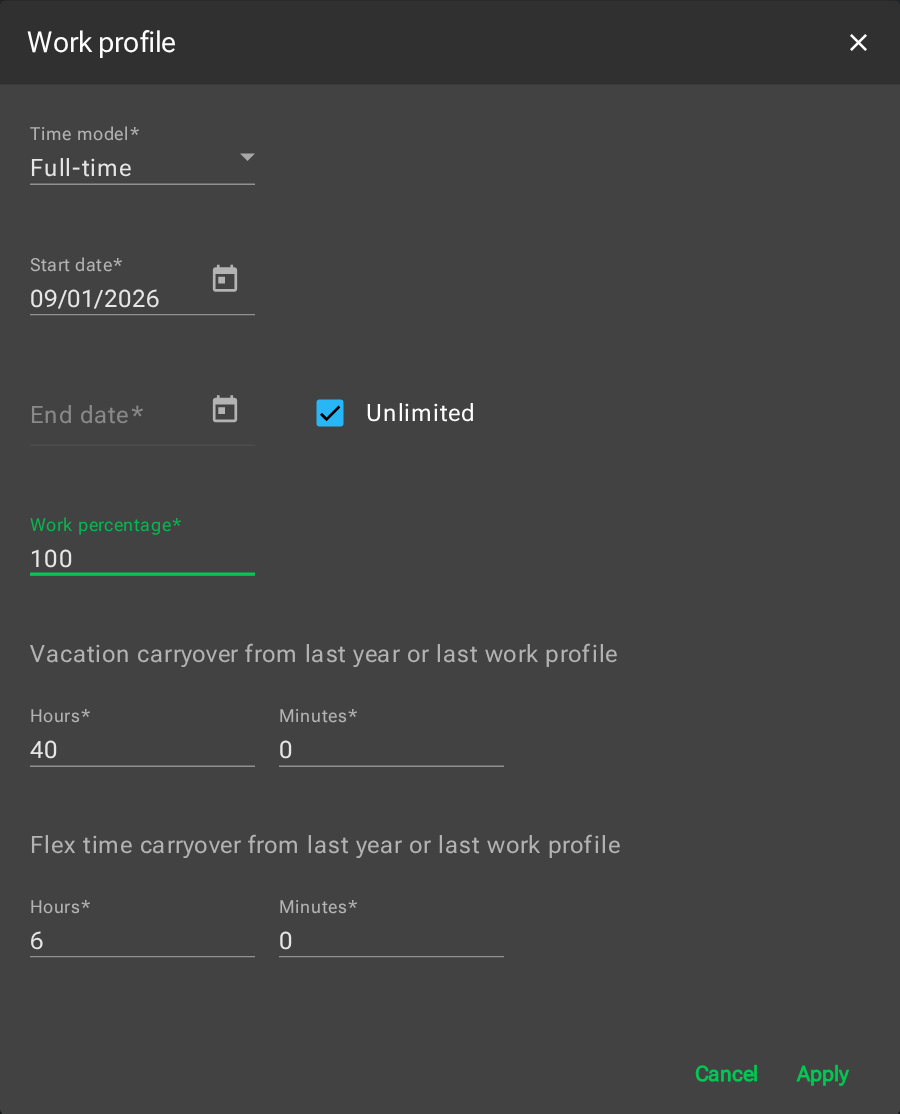
You choose the time model, the start date and either an end date or Unlimited. The Work percentage reduces the target and the vacation allowance; 60 % of 42 hours gives 25.2 hours a week. For the vacation allowance the work profile prorates the vacation weeks to its duration in the current year.
In the two carryovers you enter the balance from the previous year or an earlier system: remaining vacation and the flex time balance in hours and minutes. If weekly overtime is switched on in the time model, there is an overtime carryover as well.
 Enlarge image
If the workload changes, end the current profile the day before and create a new one. Profiles of the same person must not overlap, and a profile cannot be shortened or deleted so that days already recorded would be left without a profile.
 Enlarge image
Record working time
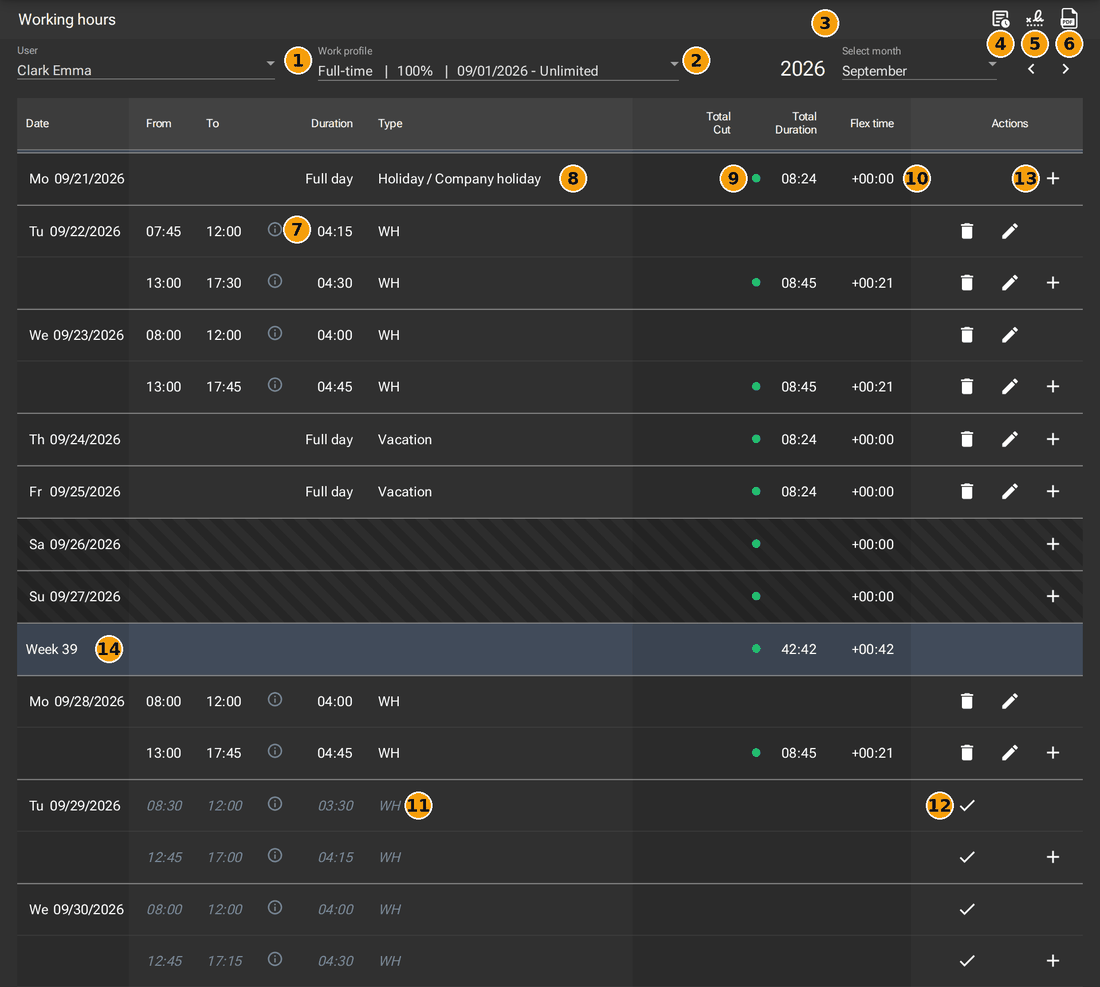
The Working hours view shows one month per person: every day with its entries, the day's total, the flex time and one row per week.
 Enlarge image
- Person: administrators choose whose time they see; everyone else sees only themselves.
- The work profile that applies.
- Year and month; use the arrows next to it to move between months.
- Account overview (step 7).
- Release and approval (step 6).
- Time statement as PDF (step 7).
- Which project times an entry comes from.
- Type: WH for working hours, vacation, holiday with its name, PL for paid leave with its short description.
- Green: the daily target is reached. Red: time is missing.
- The day's total and flex time, i.e. the difference from the target.
- Grey and italic: a suggestion from project time, not yet recorded.
- Take the suggestion over as working time.
- Add an entry for this day.
- The week's total and flex time.
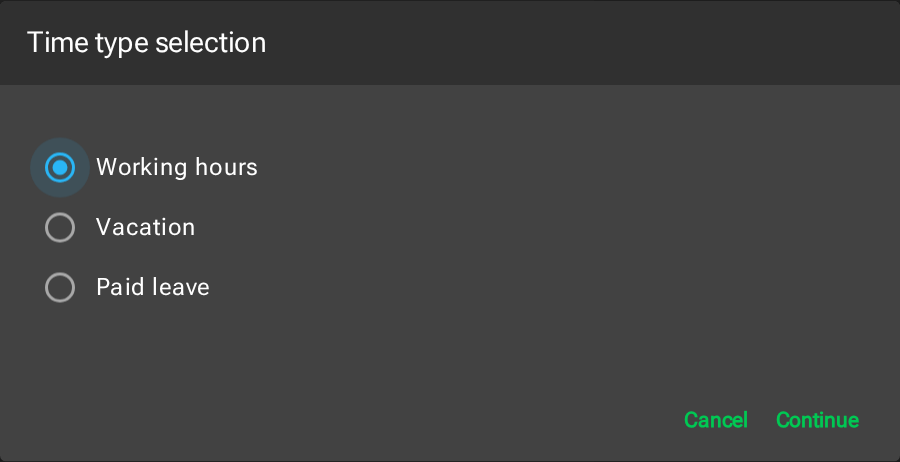
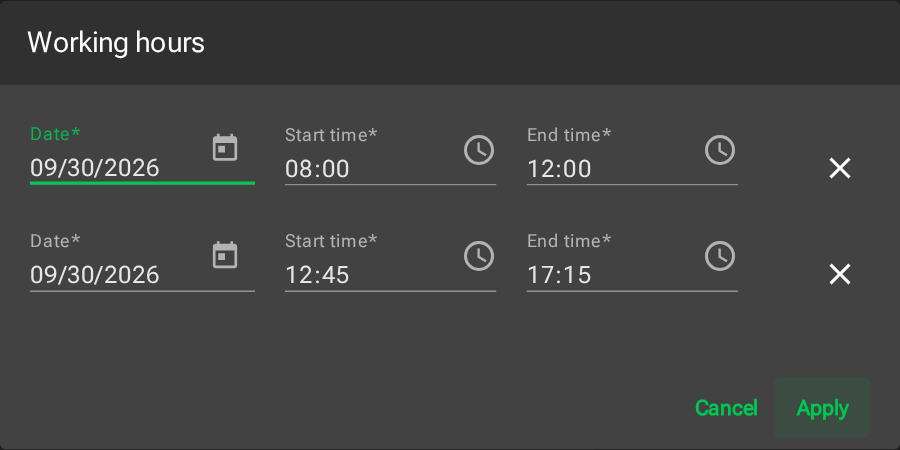
The plus first opens the choice of Working hours, Vacation or Paid leave. For working hours a dialog with date, start and end time follows; if the day has suggestions from project time that are not yet recorded, they are already filled in. Remove a row that is wrong with the cross. Vacation and paid leave are entered as a full or half day or in hours, depending on the type also across several days.
 Enlarge image
 Enlarge image
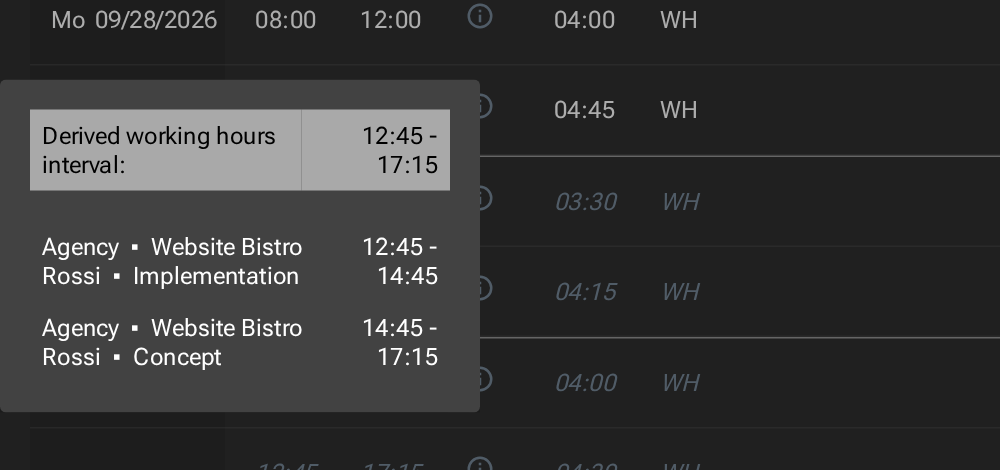
The suggestions come from the same person's project time, recorded in the app or the web application: entries that overlap or follow on from each other are merged into one interval. Which project time counts is set by the Working time summation field on domain, project and task: Adding counts as working time (the default for a domain), Subtracting cuts the time out, for example for a break, and Neutral is ignored. Projects and tasks adopt the mode of the level above unless something else is chosen.
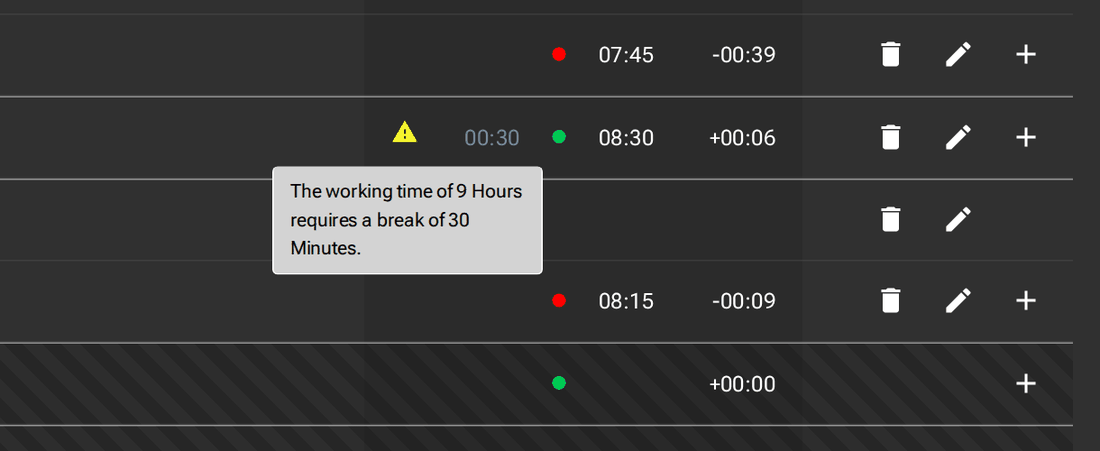
Working hours cannot be recorded for the future; vacation and leave can. If a day breaks a rule of the time model, a warning triangle appears; its tooltip gives the reason.
 Enlarge image
 Enlarge image
Release and approve
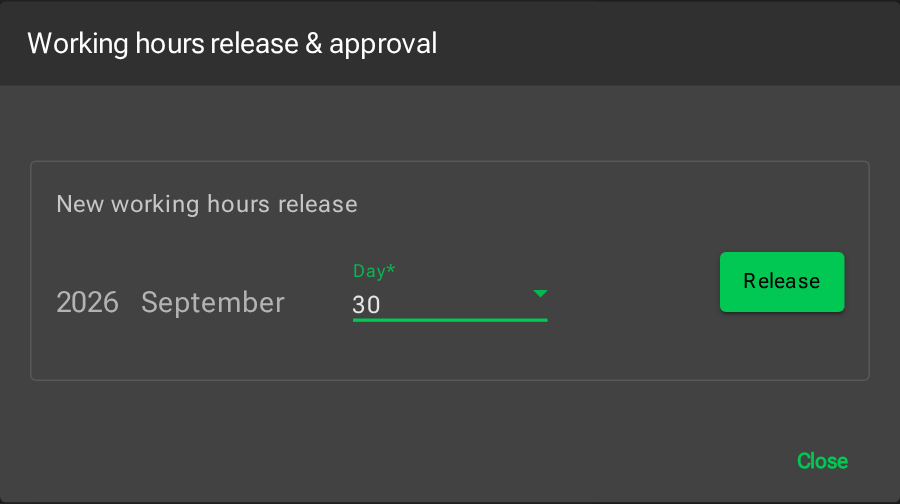
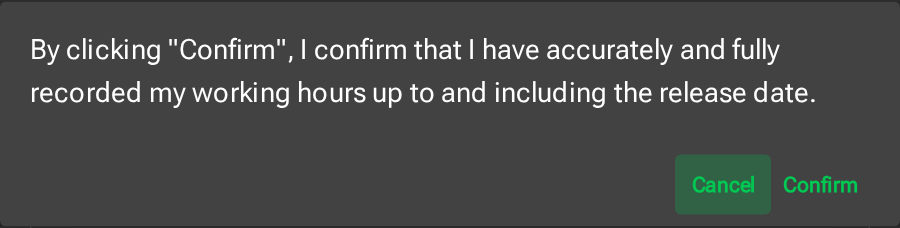
Once a month is complete, the person releases it: with the Open working hours release & approval icon at the top right, choose the day and Release. With Confirm they declare that their working time up to and including that day is recorded correctly and completely.
 Enlarge image
 Enlarge image
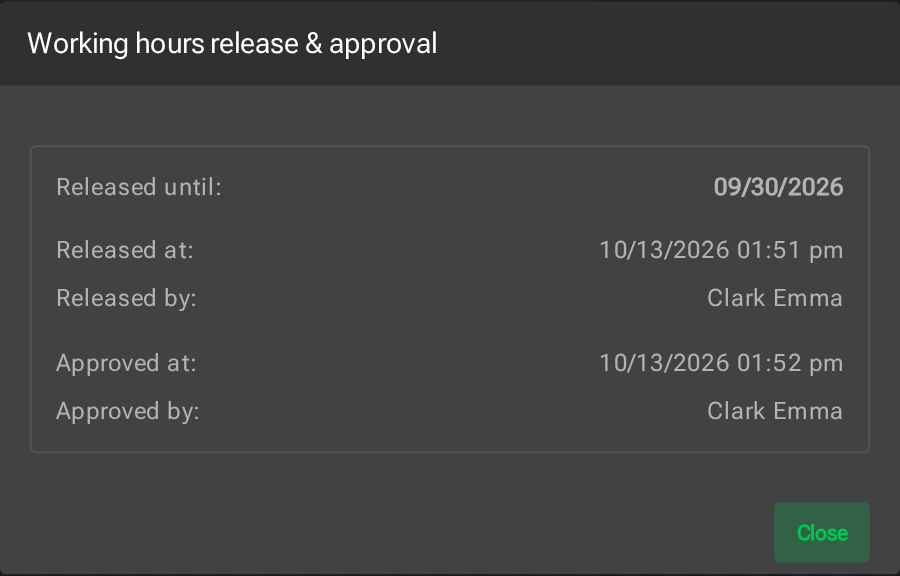
An administrator checks the times and clicks Approve. Until then the person can revoke the release with Withdraw; after approval no longer.
From then on nothing can be changed up to and including the release date: neither working hours nor vacation nor leave. The next month can only be released once the previous month is approved.
 Enlarge image
Account overview and time statement
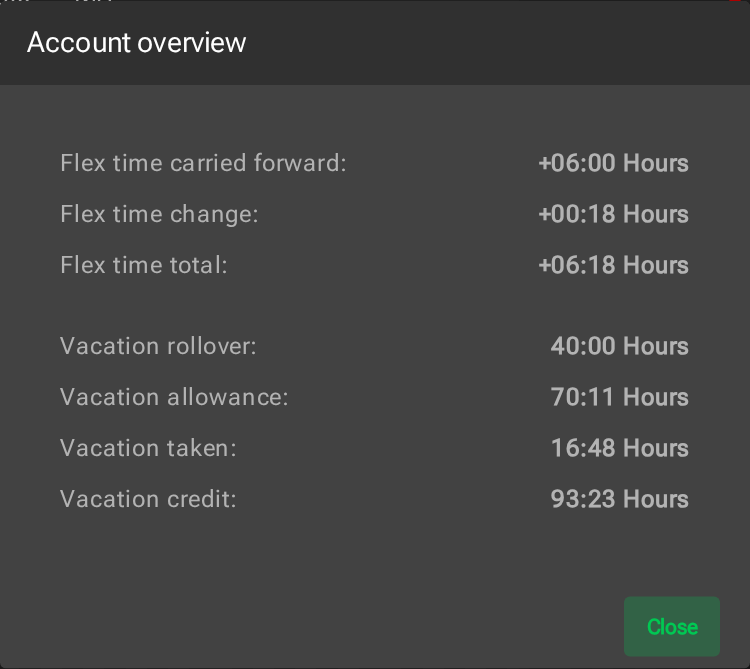
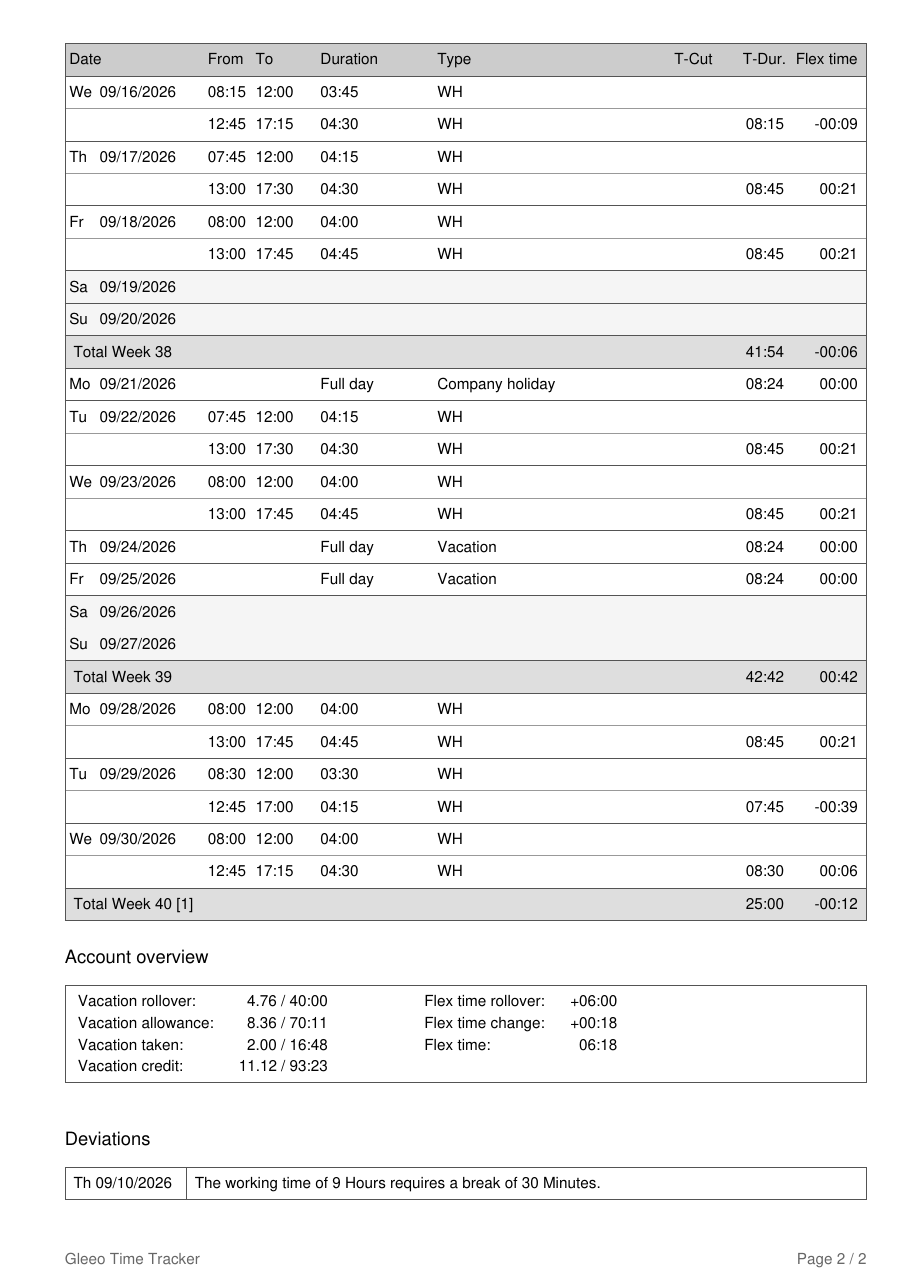
The Open account overview icon shows the balances up to the chosen month: flex time with carryover, change and total, vacation with carryover, annual allowance, vacation taken and remaining credit, and overtime where switched on. Time not credited under the rules of the time model appears under Not counted (cut).
 Enlarge image
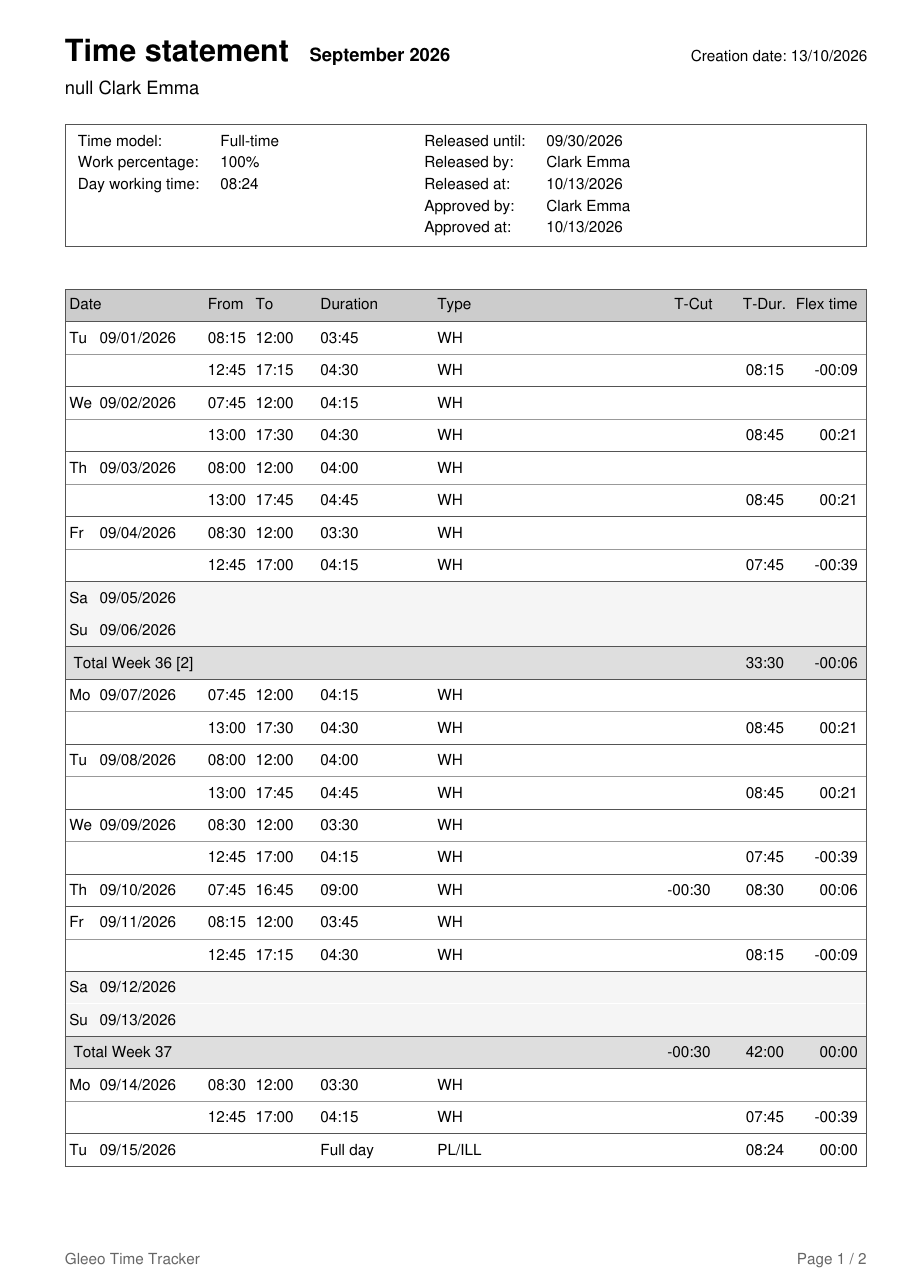
Create time statement downloads the month as a PDF: with time model, workload and release, every day and weekly total, the account overview and a list of Deviations, i.e. every warning with its wording.
 Enlarge image
 Enlarge image
More questions on this topic: FAQ on data protection